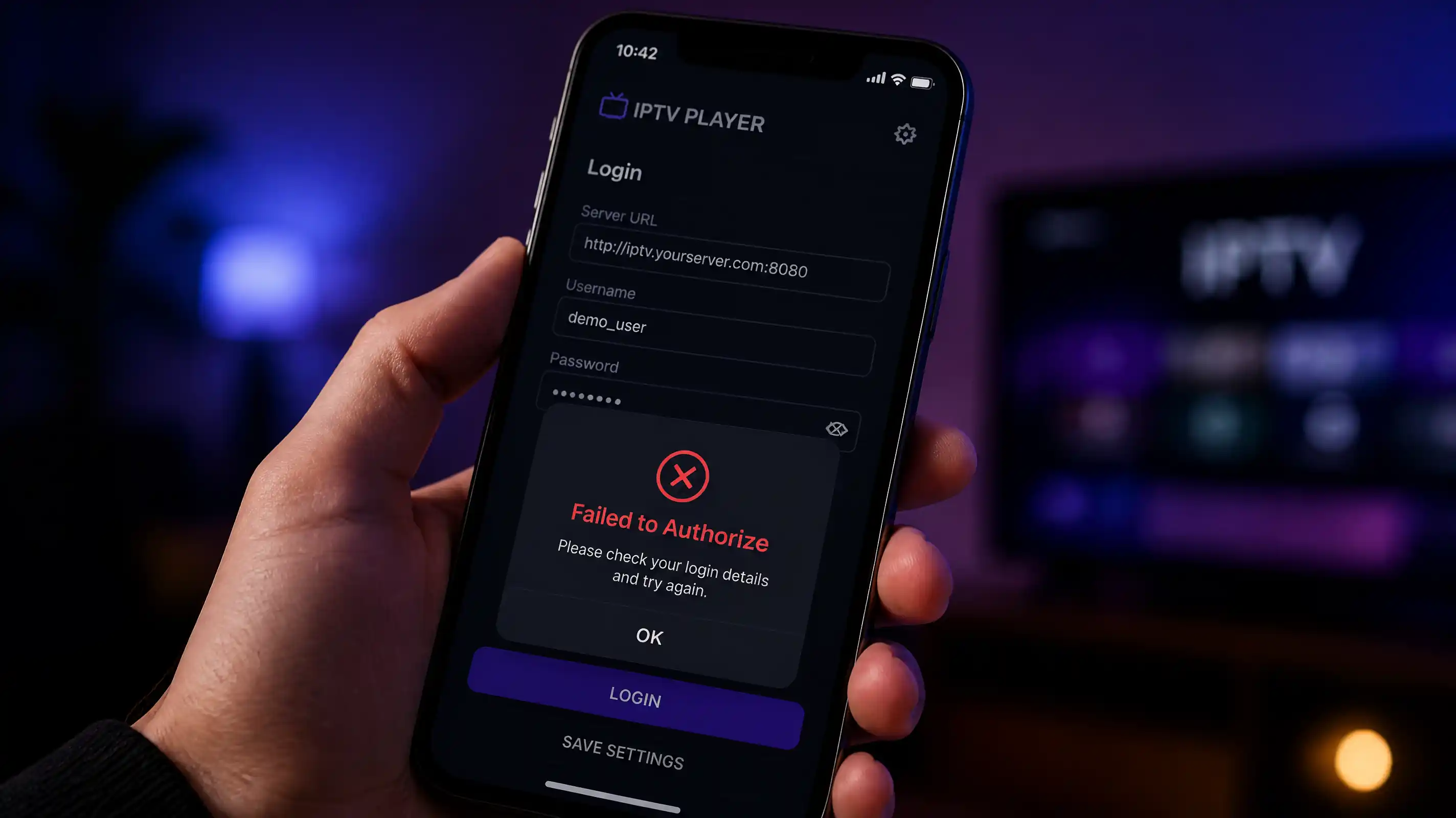
You paste your credentials into IPTV Smarters. “Failed to Authorize.” Nothing else.
That message covers at least seven different problems. Wrong URL format, expired subscription, wrong port, another device eating your connection limit, corrupted cache — same three words for all of them. That’s why Reddit threads on this are so useless half the time: whoever answered had a different problem than you.
The fixes are ordered by how often each cause actually occurs. Most people are done by Fix 3.
Before you change anything, run your credentials through our free IPTV Checker. It contacts your server directly — no app in the middle — and tells you in seconds whether the problem is your credentials, your server, or something on the network. Start there.
What Does “Failed to Authorise (7)” Mean in IPTV Smarters?
“Failed to Authorise (7)” is a specific error code from the Xtream Codes API. The number 7 means the server received your login request, checked your credentials, and actively rejected them — not a connection failure, but a deliberate refusal.
Three causes produce error code 7 specifically:
- Wrong username or password — a single typo, extra space, or case mismatch is enough to trigger it
- Expired subscription — once your plan expires, the server returns code 7 on every login attempt until you renew
- Account suspended — providers suspend accounts for shared use or payment issues; the error looks identical to wrong credentials
Code (7) is distinct from a network or connection error. If you see it, the server is reachable and responding — only your credentials are the problem.
Fastest way to confirm which of those three it is: run your details through the IPTV Checker. It contacts the server directly, returns the exact server response code, and tells you whether the issue is your username, password, subscription status, or account standing — before you touch a single setting in the app.
Quick diagnosis
Find your situation below and jump straight to the right fix:
| What happened | Most likely cause | Jump to |
|---|---|---|
| Never worked, brand new setup | Wrong URL format | Fix 1 → |
| Worked before, stopped suddenly | Expired subscription or server change | Fix 2 → |
| Works on one device, fails on another | Max connections | Fix 3 → |
| Error after reinstall or update | Corrupted cache | Fix 4 → |
| URL looks right but still fails | Wrong port | Fix 5 → |
| Older phone or tablet | App version incompatible | Fix 6 → |
| Credentials test fine but app fails | Server down | Fix 7 → |
Fix 1: Wrong server URL format
This is the cause in the majority of “never worked on first setup” cases. IPTV Smarters is strict about URL format. A single missing character produces “Failed to Authorize” even when your credentials are completely correct.
What IPTV Smarters expects
When you add a playlist using Xtream Codes API (the “Login with Xtream Codes API” option), the app needs three separate fields:
- Server URL — the full address including protocol and port
- Username — exactly as your provider sent it
- Password — exactly as your provider sent it
The server URL field is where most people go wrong. Your provider typically sends something like:
http://provider.com:8080That full string — protocol, domain, colon, port — goes into the Server URL field. Not provider.com. Not provider.com:8080. Not http://provider.com:8080/get.php?username=.... The full address, nothing more.
Common URL format mistakes
| What you typed | What’s wrong | Correct format |
|---|---|---|
provider.com:8080 | Missing http:// | http://provider.com:8080 |
http://provider.com | Missing port number | http://provider.com:8080 |
https://provider.com:8080 | Wrong protocol (most IPTV servers use http) | http://provider.com:8080 |
| Full M3U link in URL field | M3U links belong in “Add Playlist” not Xtream | Use “Add Playlist” option instead |
Trailing / at the end | Smarters sometimes rejects this | Remove the trailing slash |
Step 1 — Ask your provider for the exact Xtream Codes URL. Don’t try to guess or extract it from your M3U link. A legitimate provider sends you a server URL, a username, and a password as three separate pieces. If they only gave you an M3U link, use the “Add Playlist” option in Smarters instead of the Xtream Codes API login.
Step 2 — Copy each field separately. Do not paste the full URL string into the username field. Each of the three boxes needs its own value.
Step 3 — Check for a trailing slash. Some providers include a / at the end of the server URL. IPTV Smarters handles this inconsistently across versions. If your URL ends with /, remove it and try again.
Fix 2: Wrong or expired credentials
Credentials fail for three reasons: they were typed wrong, they expired, or the provider reset your account.
Check for typos
Copy your username and password directly from the original message your provider sent. Do not type them from memory. One wrong character — one missed capital letter, one 0 where there should be an O — produces “Failed to Authorize.”
After pasting, manually delete the last character of each field and retype it. This removes invisible trailing spaces that copy along with the text and break authentication silently.
Check your subscription expiry
Run your credentials through the IPTV Checker. It reads the actual expiry date from your provider’s server and shows it to you. Subscriptions expire earlier than expected more often than people think, especially when providers operate in a different timezone.
If the checker shows your subscription is expired, contact your provider to renew. If the checker shows your subscription is active but IPTV Smarters still fails, the problem is somewhere else in this list.
Provider-side account reset
Some providers reset accounts automatically to prevent credential sharing. If your credentials were working yesterday and nothing changed on your end, ask your provider directly: “My credentials stopped working overnight. Can you confirm my account status and send fresh login details?”
A provider that replies within a few hours is worth keeping. One that takes days to respond to a broken subscription has already shown you what the service is like.
Fix 3: Max connections reached
This one is probably the most annoying because it is not your fault — and the error message gives you no hint that it is the cause.
IPTV subscriptions come with a connection limit, usually 1 or 2 devices at once. When that limit is hit, the server rejects any new login with “Failed to Authorize.” The server does not say “max connections reached.” It just refuses your login as if your credentials were wrong.
How to know if this is your problem
The giveaway is if the error is inconsistent. You open the app, it fails. You close it on another device, try again, and it works. Or it works in the morning but fails in the evening when more people are using the same credentials.
Step 1 — Check how many devices currently have the app open. Close IPTV Smarters on every device except the one you’re testing on. Go back and try again.
Step 2 — Check if your credentials were shared. If you gave your M3U URL or Xtream Codes login to someone else, or if it ended up in a group chat, anyone with those details can use your subscription simultaneously. You’d see the max connections error whenever they’re watching.
Step 3 — Contact your provider. Ask them: “How many simultaneous connections does my subscription allow, and how many are currently active?” A real provider can see live connection data and either reset it or tell you who’s using it.
If your connection count keeps hitting the limit even when no one else should be using it, your credentials may have leaked. Ask your provider to issue new credentials and invalidate the old ones.
Fix 4: Corrupted app cache
IPTV Smarters stores cached data locally — previous credentials, playlist data, server responses. When that cache gets corrupted (which happens after an update, a crash, or a partial reinstall), the app can fail authorization even with perfectly valid credentials.
This fix takes two minutes and fixes a surprising number of persistent “Failed to Authorize” errors that nothing else resolves.
On Android
Step 1 — Clear cache and data. Go to Settings → Apps → IPTV Smarters Pro (or Smarters Player Lite) → Storage → tap “Clear Cache,” then “Clear Data.” This removes all stored credentials and playlist data, so you will need to re-enter them.
Step 2 — Restart your device. Not just the app. Full device restart before reopening Smarters.
Step 3 — Add your credentials fresh. Do not restore from a backup if the app offers one. Re-enter the URL, username and password manually.
On Fire Stick
From the home screen, hold the Home button on the remote and open “Manage Installed Applications.” Find IPTV Smarters, select it, then choose “Clear Data.” Restart the Fire Stick by unplugging it for 30 seconds, then set up Smarters again from scratch.
On iOS
iOS does not let you clear app cache without uninstalling. Delete the app entirely, restart the iPad or iPhone, reinstall from the App Store, and re-enter your credentials fresh.
Fix 5: Wrong port number
Your server URL is formatted correctly, your credentials are right, but the port number is wrong. This breaks authorization without any useful error.
IPTV servers commonly run on these ports:
| Port | When it’s used |
|---|---|
8080 | Most common default for budget providers |
80 | Standard HTTP port — some providers use this |
2082, 2086, 2095 | Less common, older server setups |
443 | HTTPS servers (rare for IPTV) |
If your provider gave you a URL like http://provider.com with no port, the port defaults to 80. If their server actually runs on 8080, every request fails silently.
Step 1 — Ask your provider which port your subscription uses. The direct question: “What port number should I use in the server URL?”
Step 2 — Try the common alternatives. If you cannot reach your provider quickly, try replacing the port in your URL:
- Change
:8080to:80 - Change
:80to:8080 - Try without a port entirely (defaults to 80)
Step 3 — Use the IPTV Checker to test each variant. The checker tests the URL directly and tells you if the server responds, which confirms whether the port is correct.
Fix 6: Smarters version too old
IPTV Smarters has gone through several major versions, and older releases do not support the authentication protocols that newer providers use. If you are on Smarters Player Lite version 2.x or an older Pro build, some servers will reject your login outright — not because your credentials are wrong, but because the app is speaking an older protocol the server no longer supports.
This comes up most often on older Android devices that stopped receiving Play Store updates, and on Fire Sticks where the app was sideloaded years ago and never updated.
How to check your version
In IPTV Smarters Pro: tap the three-line menu → About. The version number is listed there.
Current versions as of June 2026:
- IPTV Smarters Pro: 5.1.x
- Smarters Player Lite: 3.1.x
If you are below those, update from the Play Store (Android) or re-download from the official source. On Fire Stick, go to the Appstore and search for IPTV Smarters — if an update is available, install it.
If your device cannot run the latest version
Some older Fire Stick models and Android phones are stuck on older OS versions that the current Smarters build no longer supports. In that case, IPTV Smarters is not the right app for your device. Two solid alternatives:
- TiviMate — works on older Fire Stick hardware, more memory efficient
- GSE Smart IPTV — broad device support, available on iOS and older Android
Both accept the same Xtream Codes credentials. See the TiviMate setup guide if you want to switch.
Fix 7: Server outage
Sometimes the credentials are fine, the URL is correct, the port is right — and IPTV Smarters still fails because the provider’s server is simply not responding.
The honest answer here is that there is nothing you can fix on your end. But there is a way to confirm that is the actual cause before you spend 30 minutes re-entering credentials.
Step 1 — Run the IPTV Checker. Paste your URL and credentials. If the checker also fails to reach the server, the server is the problem. If the checker reaches the server fine but Smarters still fails, go back to Fix 4 (cache) or Fix 6 (app version).
Step 2 — Check the time. IPTV servers are most likely to go down between 8pm and midnight in your local timezone, when concurrent connections spike. A failure during peak hours that resolves an hour later is a provider capacity problem, not a setup problem.
Step 3 — Try on mobile data. Switch off Wi-Fi and connect via your phone’s mobile data. If the error clears, your ISP is blocking the IPTV server’s IP address. A VPN routes around this — pick a server close to you to keep the latency hit small.
Step 4 — Contact your provider with specific information. “I’m getting Failed to Authorize. I tested my credentials with IPTV Checker and the server returned [exact result]. Is there a server outage?” A provider who picks up within a few hours is worth keeping. One that goes silent for a day while your subscription is completely dead — you already know what that tells you.
Frequently asked questions
What does “authorise 7” mean in IPTV Smarters?
Error code 7 is returned by the Xtream Codes API when the server rejects your credentials. It means the server is reachable but refused your login. The three causes are: wrong username or password (most common), expired subscription, or a suspended account. It is not a network or app error — the fix is correcting your credentials or renewing your plan, not reinstalling the app.
Why does IPTV Smarters say failed to authorize?
The error means the app could not authenticate your credentials with the server. The seven causes are: wrong URL format, wrong or expired credentials, max connections reached, corrupted app cache, wrong port number, outdated app version, or a server outage on the provider’s end. Run your credentials through the IPTV Checker first — it rules out the most common causes within seconds.
How do I fix failed to authorize on IPTV Smarters Pro?
Start with the URL format. In the Xtream Codes API login screen, the server URL needs the full address: http://provider.com:8080 — with protocol and port. If the URL format is correct, check your subscription expiry using the IPTV Checker. If the subscription is active, clear the app’s cache and data in your phone’s settings, restart the device, and re-enter credentials fresh.
Why does IPTV Smarters work on my phone but not my TV?
Your subscription probably has a simultaneous connection limit of 1 or 2. If your phone is logged in when you try to open the app on your TV, the server rejects the TV login as “Failed to Authorize.” Close the app on your phone, then try on the TV. If that fixes it, you need a subscription with a higher connection limit. If the error still appears after closing your phone, the cause is different — Smart TVs run an older build of IPTV Smarters than phones do and have their own set of issues. See the IPTV Smarters not working on Smart TV guide for the full list.
What does “failed to authorize” mean in IPTV?
It means the server rejected your login. The server checked your username, password and server URL against its records and refused to grant access. This happens when any part of those three details is wrong, when the subscription has expired, when the connection limit is reached, or when the server itself is down and rejecting all new connections.
Can I use an M3U link instead of Xtream Codes to avoid this error?
Yes. If you have an M3U URL from your provider, use the “Add Playlist” option in IPTV Smarters instead of the “Login with Xtream Codes API” option. M3U authentication works differently and bypasses most of the Xtream Codes authorization errors. The trade-off is that M3U playlists load channels more slowly and do not show subscription expiry information. You can convert between formats using the M3U to Xtream Converter.
Why does IPTV Smarters keep failing after I reinstall?
If reinstalling alone did not fix it, the issue is one of three things: you restored cached credentials that were already broken, the server is down, or your subscription genuinely expired. On Android, after uninstalling you need to also go to Settings → Apps and clear any residual data before reinstalling. Re-enter your credentials manually rather than restoring from a backup.
How do I know if my IPTV server is down?
Run the IPTV Checker with your URL and credentials. If the checker also cannot reach the server, the server is down. If the checker reaches the server fine and shows your subscription as active, the problem is in the Smarters app itself, not the server. Also try switching from Wi-Fi to mobile data — if the error clears on mobile data, your home ISP is blocking the server’s IP.
IPTV troubleshooting tools
IPTV Checker
Test your M3U URL or Xtream Codes credentials directly. Shows server status, channel count, subscription expiry and response latency in seconds.
M3U to Xtream Converter
Convert your M3U playlist URL to Xtream Codes credentials. Works in the other direction too — Xtream Codes to M3U.
IPTV Speed Test
Measure your connection speed and latency to your IPTV server — tells you whether buffering comes from your internet or your provider's server.
Channel Viewer
Browse your full channel list, identify dead streams, and download a clean playlist with only working channels.