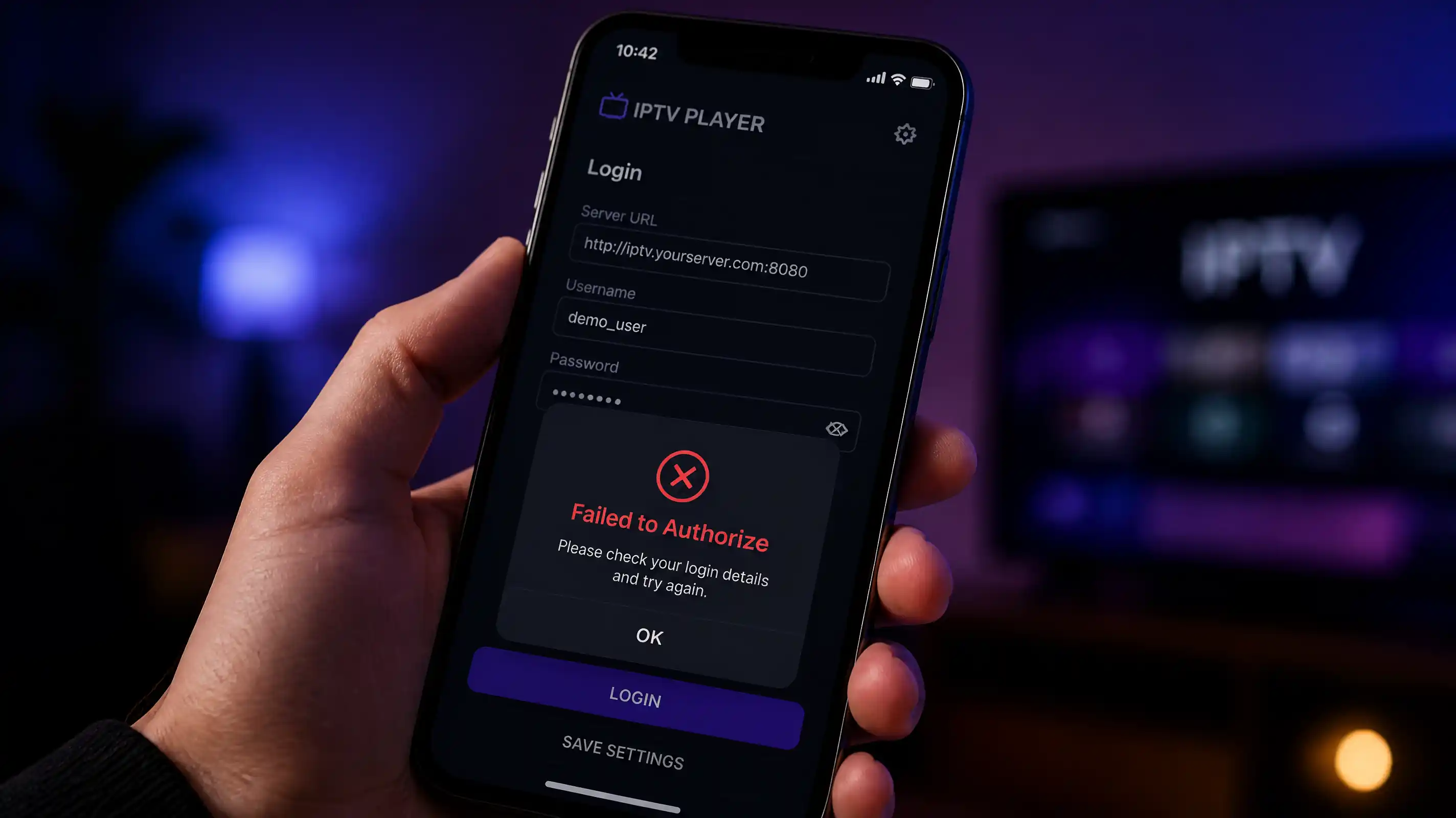
You open IPTV Smarters on your LG or Samsung TV. Black screen. Or it loads for a second and quits.
You pick up your phone, open the same app with the same credentials, and it works immediately.
That gap is almost never about your credentials. Smart TVs run a different, usually older, version of IPTV Smarters than phones and Fire Sticks do. The LG Content Store and Samsung Smart Hub versions lag two or three major releases behind the Android build — old enough to fail against modern IPTV server setups. That’s the cause most people miss entirely, and no article on this seems to mention it.
Before you change anything, run your credentials through the free IPTV Checker. If the server responds and your subscription is active, the problem is on the TV side. That rules out half the list in seconds.
Quick diagnosis
| What’s happening | Most likely cause | Jump to |
|---|---|---|
| Never worked on TV, works on phone | App version outdated | Fix 1 → |
| Brand new setup, nothing connects | Credentials typed wrong via remote | Fix 2 → |
| Worked before, stopped on TV only | Max connections | Fix 3 → |
| LG TV fails, Samsung or Android TV fine | HTTP blocked by webOS 22+ | Fix 4 → |
| Stopped suddenly after working fine | Subscription expired or server moved | Fix 5 → |
| Fails at night, sometimes works in morning | DNS or ISP restriction | Fix 6 → |
Fix 1: Your Smart TV runs an outdated version
This is the cause in the majority of “works on phone, fails on TV” cases, and it is almost never mentioned anywhere.
The version of IPTV Smarters available in the LG Content Store and Samsung Smart Hub is not the same app that exists on Google Play. Smart TV app stores update on a completely different schedule. IPTV Smarters has gone through several major rewrites since version 3.x. If your provider’s server uses authentication or connection handling from version 4.x onward, the TV version fails silently — same credentials, different result.
What version is your TV running
Open IPTV Smarters on the TV, go to Settings, then About. Write down the version number.
Current Play Store versions as of August 2026:
- IPTV Smarters Pro: 5.1.x
- Smarters Player Lite: 3.1.x
If the TV shows a version below 4.x, version mismatch is likely the cause.
What to do about it
LG TV: The LG Content Store version of IPTV Smarters is maintained irregularly. Two better-maintained alternatives exist in the LG Content Store: Net IPTV and SIPTV (Smart IPTV). Both accept the same Xtream Codes credentials. Net IPTV in particular receives consistent updates on webOS. Check the Content Store for available updates on IPTV Smarters first — if no update is available and the version is below 4.x, switch to one of those instead.
Samsung TV: Open Samsung Smart Hub, find IPTV Smarters, and look for an available update. If the app shows no update available but is running on version 3.x or lower, delete and reinstall — this sometimes forces a newer build to download from the Smart Hub servers.
Android TV / Google TV (Hisense, TCL, Sony): Open the Google Play Store on the TV, search for IPTV Smarters Pro, and install the update manually. The TV Play Store does not auto-update apps the way phones do.
Fire Stick: Go to the Appstore and search for IPTV Smarters. If an update is available, install it. Fire Sticks generally receive the same Android builds as phones, so version mismatch is less common here than on LG or Samsung.
Fix 2: Credentials entered wrong via remote
Entering text with a TV remote is slow and error-prone. IPTV credentials are long strings of random characters. One wrong character — a capital where lowercase is expected, a zero instead of the letter O, a period in the wrong place — produces a connection failure with no message explaining why.
This causes more “never worked on first setup” failures than people admit.
How to enter credentials accurately on a Smart TV
The fastest method is using your phone as a keyboard. Both LG and Samsung support this natively:
- LG: Download the LG ThinQ app on your phone. Connect both devices to the same Wi-Fi. When a text field is active on the TV, your phone automatically becomes a keyboard.
- Samsung: The SmartThings app does the same thing. Open SmartThings, find your TV, and tap the keyboard icon when a text field is active on screen.
Setting this up takes two minutes and eliminates the remote-typing problem entirely.
If you need to enter credentials via the remote directly:
Step 1 — Verify the server URL format. The field should contain exactly: http://your-server.com:8080 — protocol, domain, colon, port. No trailing slash. No path after the port.
Step 2 — After typing, scroll through each field character by character using the navigation buttons before confirming. TV remote text fields let you navigate inside the text. The most common swaps: 0 vs O, l vs 1, I vs l, missing or extra dots in the domain.
Step 3 — If credentials have never worked on this TV, test them on your phone first. If they work on the phone, the TV entry is the problem. If they also fail on the phone, the issue is the credentials themselves — check your subscription status with the IPTV Checker.
Fix 3: Max connections — phone still logged in
IPTV subscriptions have a simultaneous connection limit. Usually 1 or 2 devices at once. When that limit is reached, the server rejects any new login — same failed connection, no indication that another device is the cause.
This comes up constantly in the “works on phone, fails on TV” scenario: the phone is still active when you try the TV, the server hits the limit, and the TV gets rejected.
Step 1 — Force-close IPTV Smarters on every other device. Phone, tablet, Fire Stick, laptop — everything. Not just minimize. Force-close.
Step 2 — Wait 60 seconds. Some servers take up to a minute to release a connection after the app closes.
Step 3 — Try the TV. If it connects now, max connections was the problem.
Step 4 — Decide what to do long-term. If you need IPTV on multiple devices at once, ask your provider about a plan with more simultaneous connections. If you keep hitting the limit when only one device should be active, your credentials may have been shared or leaked. Ask your provider to issue fresh credentials and invalidate the old ones.
Fix 4: HTTP blocked by newer LG webOS
This one is specific to LG TVs from 2022 onward running webOS 22 or later.
LG tightened its security policy in webOS 22 around unencrypted HTTP connections. Most IPTV providers run their servers on HTTP with port 8080. On older LG TVs, this was never a problem. On newer models, some builds of IPTV Smarters fail to complete the connection — the TV’s OS drops the request before the app can authenticate. The app reports nothing useful because it never gets a response to report on.
Samsung Tizen 7 introduced similar restrictions, but LG is where this breaks most visibly.
How to tell if this is your problem
The pattern is specific: credentials work fine on a phone or Fire Stick, fail consistently on the LG TV, no error message. The IPTV Checker reaches the server fine from a computer or phone. The problem exists only on the LG TV. If that matches your situation, webOS HTTP blocking is the likely cause.
What to do
Option 1 — Ask your provider for an HTTPS URL. Some providers offer an HTTPS connection on port 443 or 8443. If they do, use that URL in IPTV Smarters on the LG TV. HTTPS bypasses the webOS HTTP restriction entirely.
Option 2 — Switch to Net IPTV. Net IPTV handles HTTP connections better on newer webOS builds than IPTV Smarters does. It is in the LG Content Store and accepts the same Xtream Codes credentials.
Option 3 — Use a streaming stick. A Fire Stick 4K or Chromecast with Google TV plugged into your LG TV runs the full Android version of IPTV Smarters with no webOS restrictions. The LG TV becomes the display; the streaming stick handles the app. Most users who hit this problem end up going this route long-term.
Fix 5: Expired subscription or server URL changed
If IPTV Smarters was working on the TV before and stopped suddenly, this is the most common cause.
When a subscription expires, the server rejects your login — same failed connection as a wrong password. When a provider migrates servers, the old URL stops responding. Neither case produces an error message that tells you what actually changed.
How to confirm
Run your M3U URL or Xtream Codes credentials through the IPTV Checker:
- Subscription expired → renew with your provider, then delete and re-add the playlist on the TV
- Server unreachable → your provider changed their server address; contact them for the updated URL
- Subscription active, server responds → the cause is on the TV itself; go back to Fix 1 or Fix 6
If the server URL changed, go into IPTV Smarters on the TV, delete the existing playlist, and re-add it with the new URL. On Smart TVs, editing an existing playlist entry sometimes does not apply the change correctly. Delete and re-add is more reliable.
Fix 6: DNS restriction on the TV
Smart TVs sometimes use different DNS servers than your phone. Phones inherit your router’s DNS or fall back to Google’s 8.8.8.8. Some Smart TVs use the manufacturer’s default DNS or your ISP’s DNS — which can block IPTV server domains outright.
This is most common on ISPs in the UK, Netherlands and Australia that filter IPTV-related traffic at the DNS level. If IPTV Smarters works on your phone over the same Wi-Fi but fails on the TV, DNS is worth checking.
How to change DNS on your Smart TV
LG TV: Settings → All Settings → Network → Wired/Wi-Fi Connection Settings → Edit → DNS Server → set to 1.1.1.1 (Cloudflare) or 8.8.8.8 (Google).
Samsung TV: Settings → All Settings → Network → Network Status → IP Settings → DNS Setting → Manual → enter 8.8.8.8.
Android TV / Google TV: Settings → Network → your Wi-Fi network → Advanced → IP Settings → Static → fill in your current IP, gateway, subnet, and set DNS to 8.8.8.8.
After changing DNS, force-close IPTV Smarters and reopen it. The change only applies to new connections, not ones already in progress.
If the app still fails after the DNS change, run the IPTV Speed Test from the TV’s built-in browser (LG and Samsung both have one). High latency or significant packet loss to your IPTV server points to ISP throttling rather than a DNS issue — a router-level VPN would be the fix there, not anything in the app.
Frequently asked questions
Why does IPTV Smarters work on my phone but not my Smart TV?
The most common reason is version mismatch. Your LG or Samsung TV runs an older build of IPTV Smarters than your phone — the Smart TV app stores update much more slowly than Google Play. If your provider’s server was updated to use newer authentication, the TV version fails where the phone version connects fine. The second most common cause is max connections: if your phone is logged in when you try the TV, the server rejects the TV login with no explanation. Close the app on your phone first, then try the TV.
Why does IPTV Smarters show a black screen on LG TV?
A black screen on LG TV means the app either could not connect at all, or connected but cannot play the stream. The three most likely causes: the app version in the LG Content Store is too old, LG’s webOS is blocking the HTTP connection to your IPTV server, or a max connections issue is preventing playback. Start with the IPTV Checker to confirm your server is reachable, then check your app version in Settings → About. If it is below 4.x, that is your problem.
IPTV Smarters not working on Samsung Smart TV — what’s different?
Samsung Tizen runs a separate build of IPTV Smarters that does not update on the same schedule as the Android version. The most common Samsung-specific issue is an outdated app version. Check Samsung Smart Hub for any available update. If no update is available and the version is below 4.x, delete and reinstall — this sometimes pulls a newer build from the Smart Hub servers. If that does not work, Smart IPTV (SIPTV) is a well-maintained alternative available directly in Samsung Smart Hub.
Can I use IPTV Smarters on a Smart TV without a Fire Stick?
Yes. IPTV Smarters is available in the LG Content Store (webOS), Samsung Smart Hub (Tizen), and via Google Play on Android TV devices. The limitation is that LG and Samsung versions receive fewer updates than the Android Play Store build. Android TVs from Hisense, TCL, Sony and others with Google Play access get the same build as phones, which is better maintained. If you have the choice between Android TV and Tizen or webOS, Android TV gives you a more consistent IPTV experience without additional hardware.
How do I clear IPTV Smarters cache on a Smart TV?
LG TV: Settings → All Settings → General → System Manager → App Manager → IPTV Smarters → Clear Cache. Samsung TV: Settings → Apps → IPTV Smarters → Clear Cache. Android TV: Settings → Apps → IPTV Smarters → Storage → Clear Cache. If clearing cache alone does not help, use Clear Data instead — this removes all stored credentials, so you will need to re-enter them fresh. Always restart the TV after clearing, not just the app.
Is there a better IPTV app than IPTV Smarters for Smart TVs?
For LG webOS: Net IPTV and Smart IPTV (SIPTV) are both better maintained in the LG Content Store and handle newer IPTV server configurations more reliably. For Samsung Tizen: Smart IPTV is widely used and consistently updated. For Android TV and Google TV: TiviMate is more stable than IPTV Smarters on most hardware — it handles M3U and Xtream Codes, has better EPG support, and receives regular updates. The TiviMate setup guide covers the full installation.
Why does IPTV Smarters on my LG TV fail with no error message?
LG TVs on webOS 22 and later sometimes block HTTP IPTV connections at the OS level. The app fails with no useful error because the OS drops the connection before the app produces a specific message. Ask your provider whether they offer an HTTPS server URL — if they do, switch to the HTTPS address in IPTV Smarters. If not, Net IPTV in the LG Content Store handles these HTTP connections more reliably on newer webOS builds.
IPTV troubleshooting tools
IPTV Checker
Test your M3U URL or Xtream Codes credentials directly. Shows server status, subscription expiry, channel count and response latency in seconds.
M3U to Xtream Converter
Extract Xtream Codes credentials from any M3U URL, or convert Xtream Codes back to an M3U link — useful when one format works on your TV and the other does not.
IPTV Speed Test
Measure download speed, latency and packet loss to your IPTV server. Useful for diagnosing whether a Smart TV DNS issue is affecting your specific connection.
Channel Viewer
Browse your full channel list and check for dead streams. Helps confirm whether the issue is one channel or the entire playlist.